
New as of Version 6.3
With Smartstore 6.3, a fully integrated AI workflow is created that enables both text and image generation directly within the system. It is only with this version that the new features were introduced, representing a significant technological leap. In addition to the providers already available, Anthropic Claude AI is now also available, significantly expanding the possibilities of AI-supported text creation. Retailers can thus create product descriptions, marketing texts, or editorial content more quickly and with greater variety—without having to leave the platform.
Particularly far-reaching is the newly added image editing directly within the media manager, which can optionally be controlled with ChatGPT or Gemini. Users select one or more images and formulate a free prompt on the basis of which the AI modifies, combines, or completely regenerates the content. This makes it possible, for example, to optimize product photos, replace backgrounds, create color variants, or generate entirely new image ideas. Thanks to this direct integration of AI functions, the need for external graphics programs is eliminated in many cases.
Also new in Version 6.3 is file-based model management, which makes handling different AI models clearer and more structured. Models can be stored in an organized manner, differentiated, and used specifically for different tasks. This facilitates operational work and improves the consistency of results.
Overall, Smartstore 6.3 thus offers a seamless, efficient, and interruption-free AI process in which text and image generation can be centrally controlled—a significant improvement compared to fragmented workflows with external tools.
What is the Media Manager?
The new Media Manager is a powerful and versatile plugin specifically developed for managing media files. With this tool, files of various formats can be efficiently listed, clearly displayed, and edited directly.
It is ideally suited for use in various areas such as products, product groups, and Page Builder stories, enabling structured organization of media content. From the Premium Edition onward, the Media Manager replaces the previously used simple media file system, allowing users to benefit from enhanced features and improved usability.
Why a Media Manager?
Product images play a central role in a successful online shop. High-quality and detailed images are not only crucial for the purchasing decision of potential customers but also have a direct impact on visibility in search engines. Search engines such as Google positively evaluate pages with appealing and well-optimized images, which has a beneficial effect on rankings in search results. The proper presentation of your products through professional images can therefore significantly contribute to increasing the conversion rate and improving the discoverability of your shop.
With the new Media Manager, your workflow is significantly optimized and made more efficient. The powerful tool enables faster management and editing of your media content, simplifying and accelerating the entire workflow. In addition, you benefit from innovative media features, including the ability to store ALT tags and titles for images. These functions are particularly valuable for search engine optimization (SEO), as they help make your image content more easily indexable and significantly increase the reach of your products in search results.
How do I get the Media Manager?
The Media Manager is included in the software starting from the Premium Edition. This means that users in both the Premium Flat and the two Enterprise Editions, which were specifically developed for the B2C (Business-to-Consumer) and B2B (Business-to-Business) sectors, can access the Media Manager. However, this functionality is not available in the Community Edition, so users of that edition cannot use the Media Manager.

Functions of the Media Manager
Assign Files
In Smartstore 3 as well as in all conventional versions, it was only possible to assign media files to exactly one single entity, for example a specific product or a specific product group. Multiple use of the same medium was not possible without additional effort.
If, for example, an image was to be assigned to several products, this image had to be uploaded separately and linked individually for each product. This not only resulted in higher storage requirements but also increased administrative effort for shop operators.
With the introduction of the new Media Manager in the current version, this process is significantly simplified. From now on, a single file can be assigned to multiple entities at the same time without having to upload or duplicate the medium again. This saves storage space, reduces redundancies, and significantly simplifies the management of media files.
Import Files
A particularly user-friendly and convenient feature of the new Media Manager is the multi-file uploader. With this practical function, you have the option to upload one or more files simultaneously to the Media Manager. The uploaded files are then automatically integrated into your Smartstore shop and are available there for further use.
The upload process can take place directly within the Media Manager, allowing you to manage your media files quickly and easily. Alternatively, you also have the option to upload files directly in the “Edit dialog,” enabling seamless integration into your workflow. This flexibility ensures that the Media Manager provides an efficient solution for managing and uploading files.
Organize Files
The new Media Manager serves as a central hub for managing all types of media files. In this area, you will find all media files that have been uploaded anywhere in the shop. This enables you to quickly and easily access your entire media archive.
Here, you not only have the option to upload new media files but can also conveniently edit these media files. In addition, you can reassign edited files to other products or use them within Page Builder stories to create appealing content.
The Media Manager is divided into four main areas, each fulfilling a specific function and ensuring clear organization of media management:
- Toolbar & Filter: The toolbar with various control elements is located in the upper bar. Here you can create new folders, import media files, and sort the arrangement of files. Directly above the content area is the filter bar for precise display options. Next to it, the quick search field offers advanced search options with wildcards such as question marks (?) and asterisks (*).
- Folder Navigation: On the left side, virtual and physical folders represent the structure of your media archive. Virtual folders serve as intelligent search filters for dynamic sorting. In regular folders (such as the "Catalog" folder), you can create subfolders for structured storage, with new files automatically integrated into the path.
- Content Area: The central area in the middle clearly displays the contents of the currently selected folder.
- Preview Window: Positioned on the far right, it provides a detailed preview of the file. Here you can review media files, define SEO properties, and assign keywords (tags). It supports images as well as video and music files, which are streamed directly and smoothly from the server without loading times.
This powerful technology is not only used within the Media Manager but is also utilized in your shop’s frontend. This means that, for example, embedded videos within product descriptions are streamed directly from your server. As a result, you benefit from smooth playback without having to upload your videos to external platforms. This seamless integration enables complete control over your media files.
New in Version 6 – The Pixlr Plugin for the Smartstore Media Manager: Integrated, Powerful, and AI-Supported Image Editing
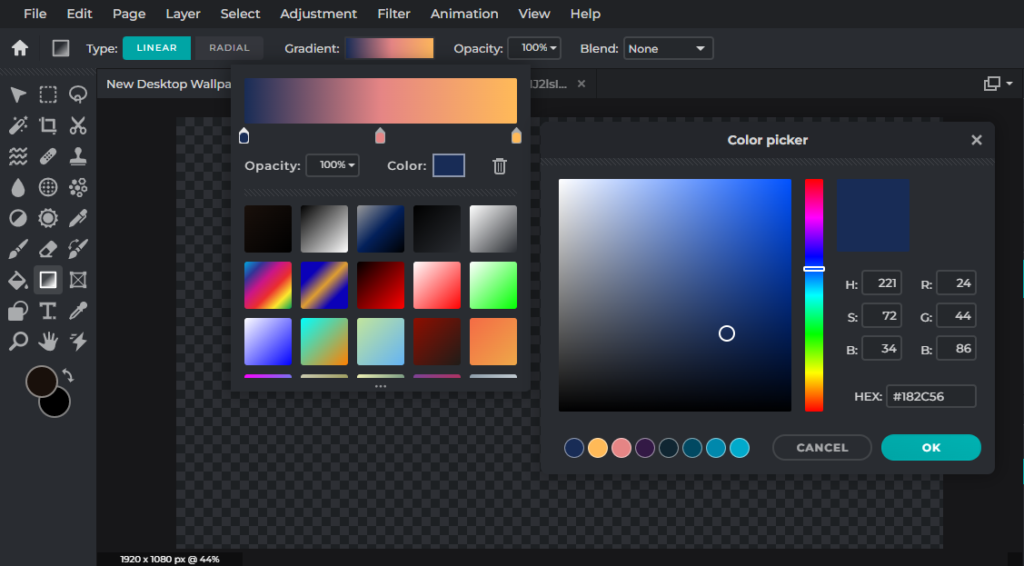
With the introduction of Smartstore 6, editing images becomes easier and more efficient than ever before. Thanks to the direct integration of the powerful Pixlr online editor into the Media Manager, there is no longer any need to use external image editing programs.
Thanks to the AI-supported technology of Pixlr, shop operators can quickly and professionally edit their product images and advertising materials. Whether simple adjustments such as cropping and scaling images or advanced optimizations such as removing backgrounds and applying creative effects—with the Pixlr plugin, numerous possibilities are available.
This solution not only saves time but also simplifies the entire workflow for online shop operators. Since editing takes place directly within Smartstore, the user experience remains seamless and user-friendly. On this information page, you will find further information and details about image editing with the new Pixlr plugin.
Frontify for Smartstore: Central Brand Governance and Seamless Asset Usage in E-Commerce
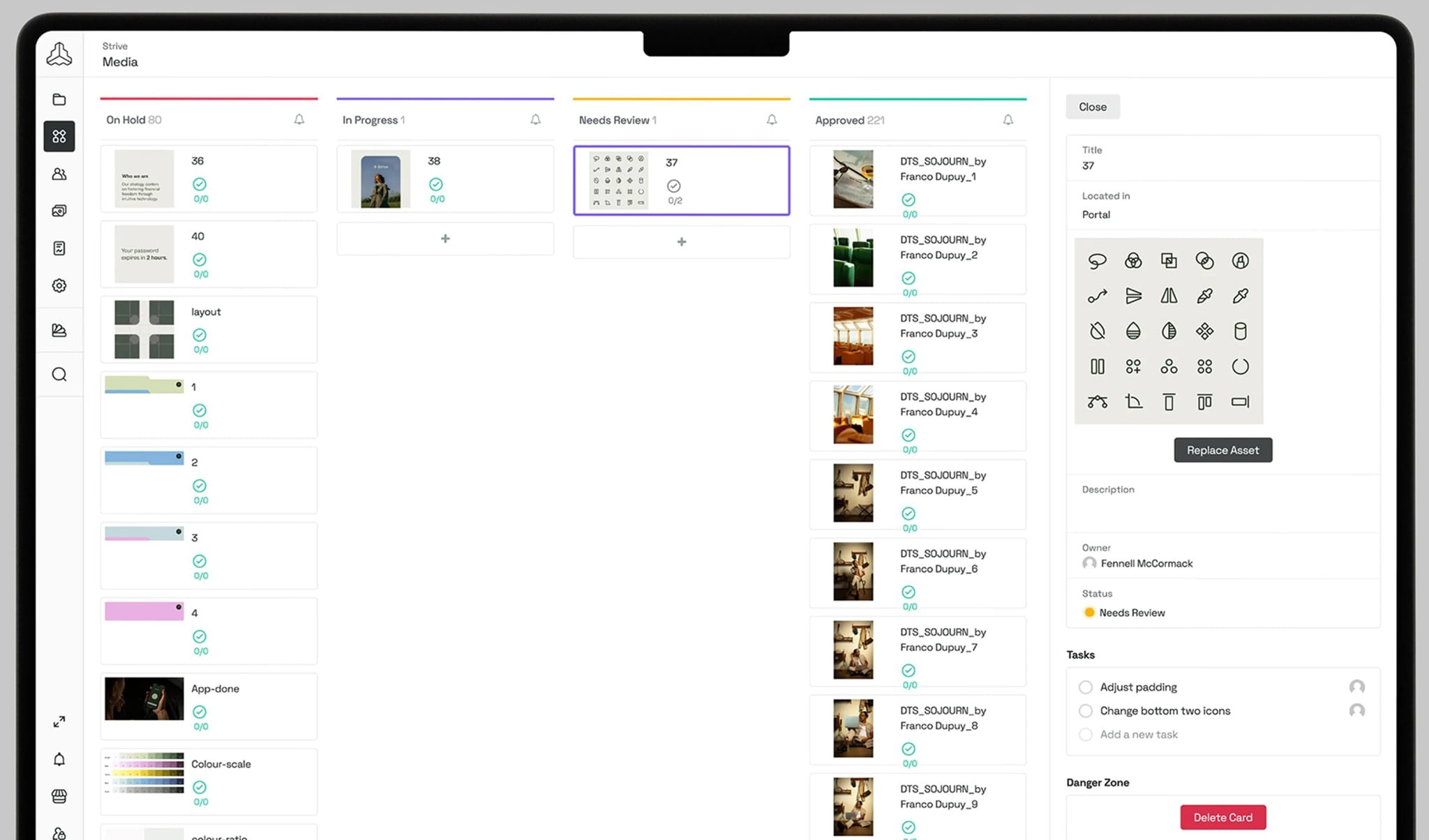
By connecting Frontify to Smartstore, companies expand their media workflow with a professional layer for brand management, approval processes, and centralized asset control. While the Smartstore Media Manager is designed for operational use within the shop, Frontify as a dedicated brand management platform ensures—particularly for enterprise customers—that logos, visual assets, templates, and brand guidelines are centrally maintained, clearly versioned, and used consistently across the company.
Frontify supports companies not only in storing their brand but in actively managing it. Brand guidelines, design elements, and approved media are centrally available and can be used by marketing, design, and external partners with the same quality standard. In combination with Smartstore, this creates an end-to-end process: Frontify delivers the brand-compliant source, and Smartstore provides the content where it is truly needed in the shop.
The Smartstore Media Manager already offers strong features for everyday shop operations: multiple assignment of files, structured folder management, a preview function, a search function, as well as SEO-relevant fields such as alt tags and titles. Frontify complements this approach with a true governance layer featuring brand portals, controlled approvals, templates, and stronger collaboration between teams and stakeholders.
This combination is particularly valuable for companies with multiple brands, shops, or countries. Frontify ensures that only approved and up-to-date content is used, while Smartstore integrates this content quickly and flexibly into product worlds, content pages, and campaigns. In this way, companies reduce media disruptions, avoid duplicates, and create a clear separation between creative brand management and operational shop use.
With Smartstore alone, media can already be managed very efficiently. However, those who additionally require professional brand control, company-wide consistency, and clearly regulated asset processes benefit significantly more from the combination with Frontify. This transforms pure media management into a scalable brand and content architecture that offers real added value for both marketing teams and e-commerce managers.
Do you have questions about this topic? Or would you like to send us your feedback? Then you can reach us via the contact form, by email at info@smartstore.com, or by phone from Monday to Friday between 10 a.m. and 4 p.m. at +4923153350.