

Organizing your products is crucial to improving the shopping experience for your customers and increasing the efficiency of your online store. An effective method of presenting the product range in a structured and clear way is the use of product groups. Smartstore in particular allows you to highlight important aspects when maintaining the data stored there, as it gives you a better overview and options when selling your products.
Why are product groups so important?
Creating product groups in an online store makes it easier for customers to find products as they are organized thematically or categorically. By logically structuring the product range into different departments or categories, customers can quickly navigate to the products that meet their needs. This contributes to user-friendliness and increases the conversion rate.
Aspects of maintaining data in product groups
-
Consistent naming: It is important to name products in product groups consistently to avoid customer confusion. Use clear and precise names that accurately describe the respective product or product group.
-
Up-to-dateness of the products: Ensure that the products in the product groups are always up to date. Remove outdated products and update product information regularly to optimize your customers' shopping experience.
-
Correct allocation: Make sure that each product is allocated to the correct product group. Incorrect categorization can lead to customer confusion and make it difficult to find products.
-
Descriptions and images: Add meaningful descriptions and high-quality images to each product in the product groups. This provides customers with all the relevant information and enables them to make an informed purchase decision.
Optimize navigation and user experience
Clearly structuring and naming product groups not only simplifies navigation for customers, but also improves the overall user experience. A well-organized product group system allows customers to quickly find their way around, compare products and search for specific items. This leads to higher customer satisfaction and long-term customer loyalty.
SEO optimization and findability
Another important aspect of maintaining product groups is search engine optimization (SEO). By using relevant keywords in the category titles and descriptions, you can improve the findability of your online store in search engines. A well-thought-out SEO strategy for product categories can help to drive more traffic to your website and attract potential customers.
Further information on search engine optimization in Smartstore can be found at: https://smartstore.com/de/suchmaschinen-seo-optimierung-in-smartstore-2/
Cross-selling and upselling opportunities
By cleverly designing product groups, you can also take advantage of cross-selling and upselling opportunities. By bundling related products in a product group or presenting products in different price categories within a category, you can encourage customers to discover additional products and purchase higher value items. This can lead to an increase in the average basket value.
Analysis and optimization
It is important to regularly analyze and optimize the performance of your product groups. By evaluating data such as click rate, conversion rate and sales per product group, you can identify weak points and make improvements. Test different product group structures and observe which ones are most effective in order to continuously optimize your online store.
How do I create a product group correctly in Smartstore?

To start creating a product group, log in to your Smartstore store and navigate to the product groups item via theCatalog tab.
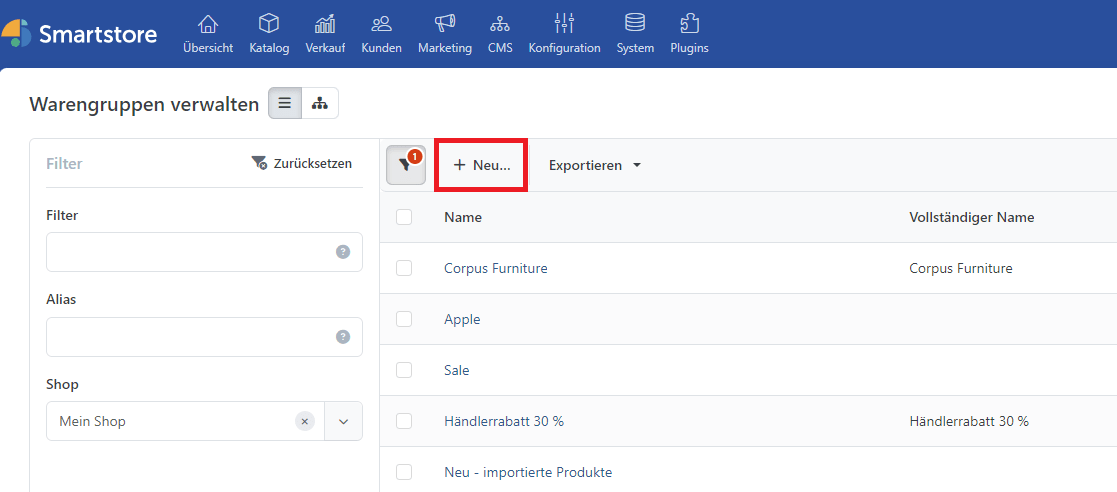
In the overview above, you will find a list of all the product groups that have already been added. You can also add and edit another one using theNew button.
You can use the External link item to enable alternative links to any other URLs in your store, regardless of whether they are products, product groups, forms, content contributions such as blogs & news or other subpages within the store. This is an optional and expandable way to individualize your online business and can be used in a variety of ways depending on the application. The link affects the main menu of the individual product groups in the store or in the category menu, which is listed on the left-hand side of the store by default.

When creating a product group that is to be subordinate to another, you can specify the next higher product group in the hierarchy in the next field Parent product group. An example of this would be to create a new product group with the name "iPhone" and select "Apple". Using this tree structure, you can make it easier for your customers to navigate within the store to ensure a better shopping experience and that they can find the products they want or are looking for more easily. Easier navigation through an online store has been proven to boost sales, increase the conversion rate and make customer loyalty more likely.
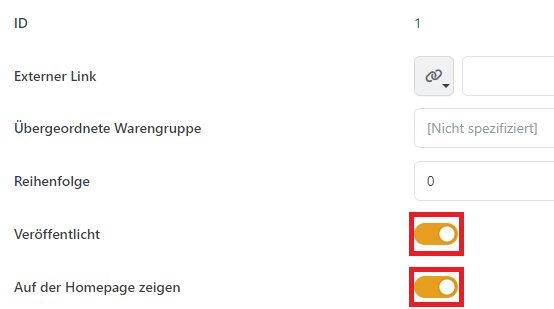
As soon as all other settings have been made, don't forget to publish your newly created product group using the toggle setting!
If you don't want the full name of your product group to be displayed in the store frontend, you can enter an alternative in the "Name" field instead. The upper description serves as an option for a short description under the product group name in the frontend. The same applies to the lower description, which can be accessed by clicking on the "Show other description" button. However, this is then displayed accordingly under the listed products.
You can optionally attach badge texts to the product group names. These can provide a better overview and organization in the store. Depending on the imported language resources, these are adapted and translated to the multilingualism of your online store, in addition to the other designations and information. The respective languages are listed in the tab of the field.
The next item in the menu on the left is search engine optimization. The correct management of SEO data is essential for the success of an online store. The title tag is the text that serves as the headline in the search engine results. The meta description is used as further text in the search. In this you can summarize and describe the product group in a maximum of three sentences. The Smartstore store software usually extracts the meta keywords itself, based on previous knowledge from the individual subpages and product information. However, you can also optionally insert and add important keywords here.
Finally, you can create a separate URL for each product group. Here it is important to use a consistently small spelling, to connect the individual words with a "-" or to replace spaces with hyphens and, depending on the language, to adapt any umlauts such as ä or ö with ae or oe. You also have the option of customizing the SEO settings for each imported language resource.

The Products tab provides an overview of all products assigned to the product group. By clicking on Add products or by setting rules for automatic assignment , you can determine which items from your range should be listed in the corresponding product group. These can be found from a drop-down menu or by searching.
More about the Using the rule builder in Smartstore

The MegaMenu is not included in the Community Edition, which may be one reason why this tab does not appear for you. If you would like to purchase this feature, please contact our sales department!
The MegaMenu offers a modern and appealing design that integrates seamlessly into the appearance of your store. Thanks to the clear structure and the clear arrangement of the categories and subcategories, your customers will find the products they are looking for quickly and easily. One of the special functions of the MegaMenu is the option to integrate background images. These images can be used specifically to highlight certain categories or offers and create an emotional connection with customers. For example, you can present seasonal offers or special promotions in a visually appealing way. The Point&Click options of the MegaMenu offer you an intuitive way to design the menu according to your wishes. You can add, remove or move categories, subcategories and products with a simple mouse click. This makes it quick and easy to adapt the menu to current requirements or seasonal changes.
In the MegaMenu configuration settings, you can make the following settings for your respective product group:
- Is active: Activates the Mega Menu so that it is displayed.
- Prefer in Mega Menu: Within the drop-down menu, you can pin the respective product group and prefer it for the navigation structure
- Maximum number of elements per column: Defines the maximum number of elements per column.
- Maximum numberof sub product groups per product group: Defines the maximum number of sub product groups per product group.
- Display sub-groups comma-separated (inline): Determines whether sub-commodity groups are displayed wrapped (one line per commodity group) or comma-separated.
- Allow output of sub-groups in next column: Refers to whether the output of sub-commodity groups can be interrupted and continued in the next column if the number of sub-commodity groups still to be displayed exceeds the number of permitted navigation elements per column.
- Minimum number of sub-groups: Defines the minimum number of sub-item groups that a menu item must have for it to be displayed (0 means everything is displayed).
- Display background graphic: Determines whether a background graphic is displayed in the Mega Menu dropdown.
- Show product group preview image: Determines whether the preview image of the product group is displayed within the first column of the MegaMenu dropdown.
- Introductory text: Defines an introductory text that is displayed below the product group preview image. This text is only displayed if the product group preview image is also displayed. The use of HTML tags within the text is supported.
- Teaser: The teaser area in a drop-down menu offers you the opportunity to draw more attention to your products, e.g. by displaying a selection of products with the product rotator within the drop-down menu or by defining your own HTML completely freely.
- Teaser type: Here you can choose the type of teaser.


The content slider is also not included in the community edition! For further information, please contact us by phone or e-mail.
A content slider is ideal for conveying important information to visitors to your website. As visitors' attention is drawn directly to this area on their first visit, you should place particularly relevant information there, such as special offers. In addition to the global configuration settings of the plugin, you can also make product group-specific adjustments here. This enables you to decorate your store even more individually and with continuous and visually appealing products, discount promotions and other content.
Optimized product groups for an improved sales booster
By carefully maintaining and structuring your product groups in an online store with Smartstore, you can not only improve usability and the shopping experience for your customers, but also increase your sales. Therefore, invest time and resources in the optimal design of your product groups to make your online store a successful sales channel.
If you have any further questions about product groups in Smartstore or would like to make an appointment for a live demo, please do not hesitate to contact us. You can reach us via the contact form, by e-mail at info@smartstore.com or by phone from Monday to Friday between 10 a.m. and 4 p.m. at +4923153350.
Contact:
E-mail: info@smartstore.com
Phone: +4923153350
SmartStore AG
Kaiserstraße 63-65
44135 Dortmund