
Since version 6, Smartstore meets the requirements of the General Product Safety Regulation (GPSR). The GPSR Plugin helps structure and display legally required product details, manufacturer data, and safety instructions.
This guide shows how to configure and use the plugin effectively.
1. Configure the GPSR Plugin
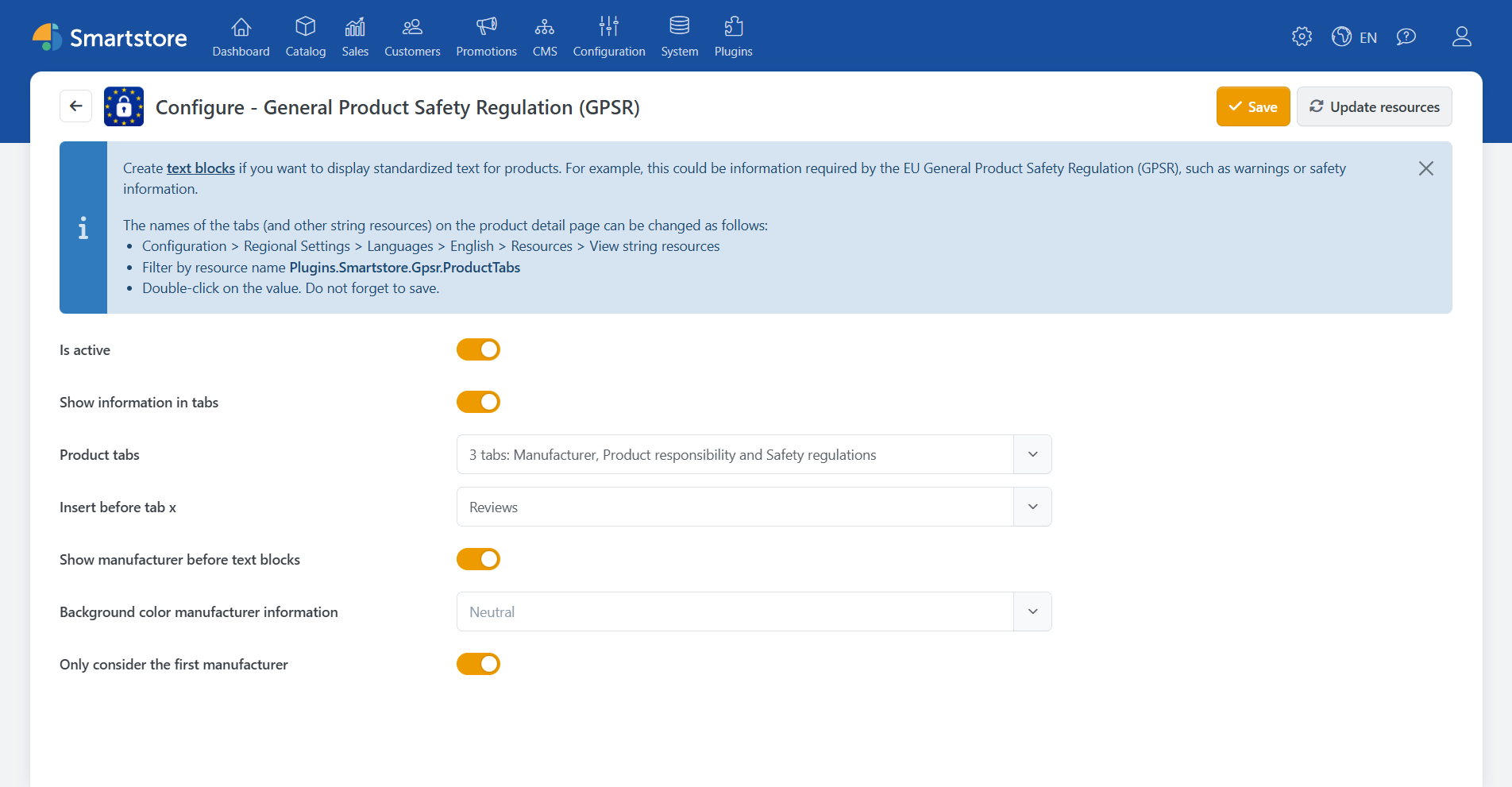
In the backend, go to Configuration → Plugins → GPSR to set display options:
| Option | Description |
|---|---|
| Show information in tabs | Displays GPSR content in separate product tabs. If disabled, content appears as blocks under the product description. |
| Product tabs | Specifies which tabs display GPSR data. |
| Insert before tab X | Defines where GPSR tabs appear. If left blank, they’re appended at the end. |
| Show manufacturer before text blocks | Displays manufacturer information before warning messages. |
| Background color manufacturer information | Sets a background color for manufacturer info. Leave blank to show without background. |
| Only include the first manufacturer | Only the first assigned manufacturer is shown if enabled. |
The examples in this post are for explanatory purposes only and are not legally binding or compliant.
2. Display Manufacturer Information
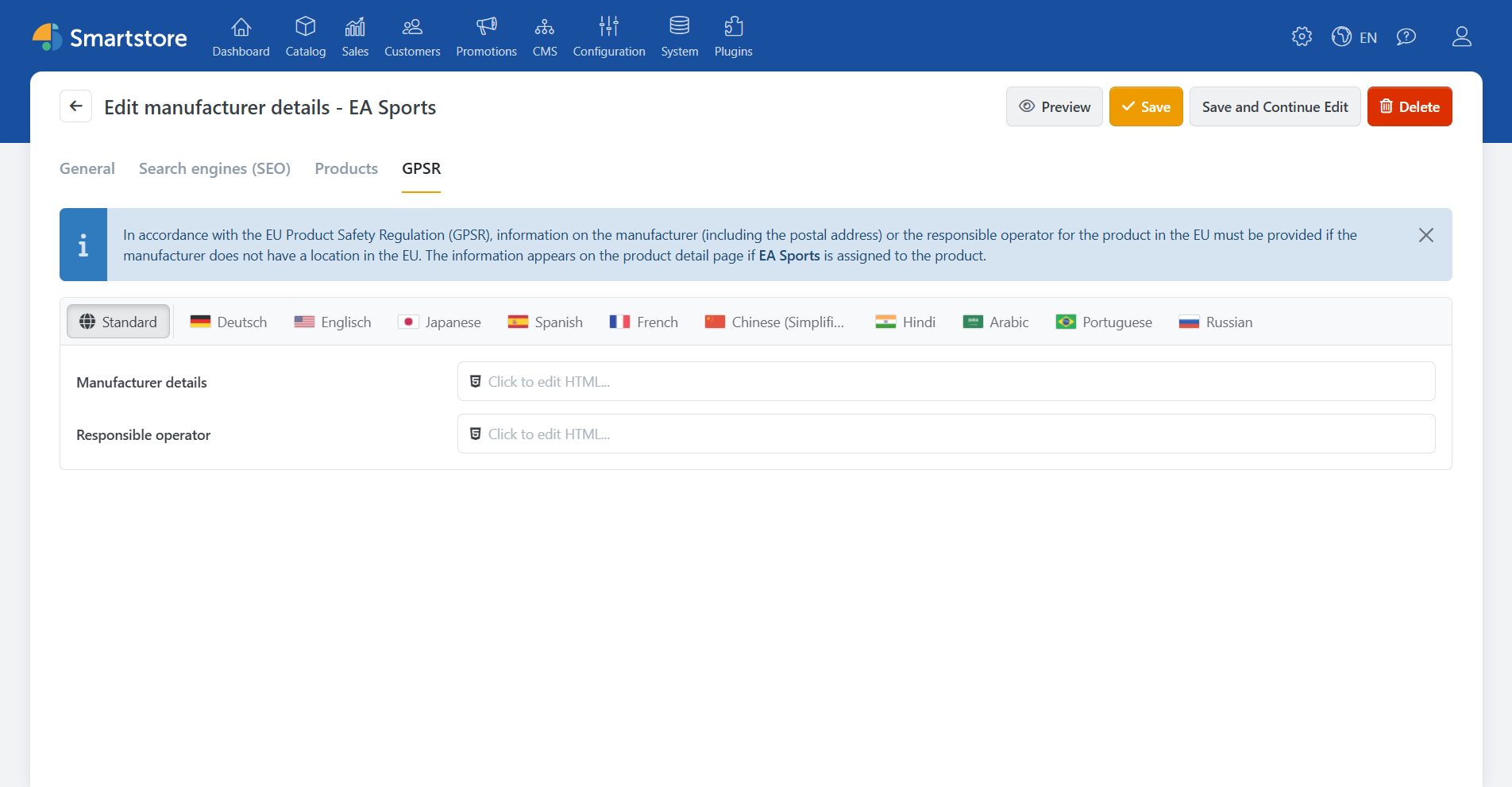
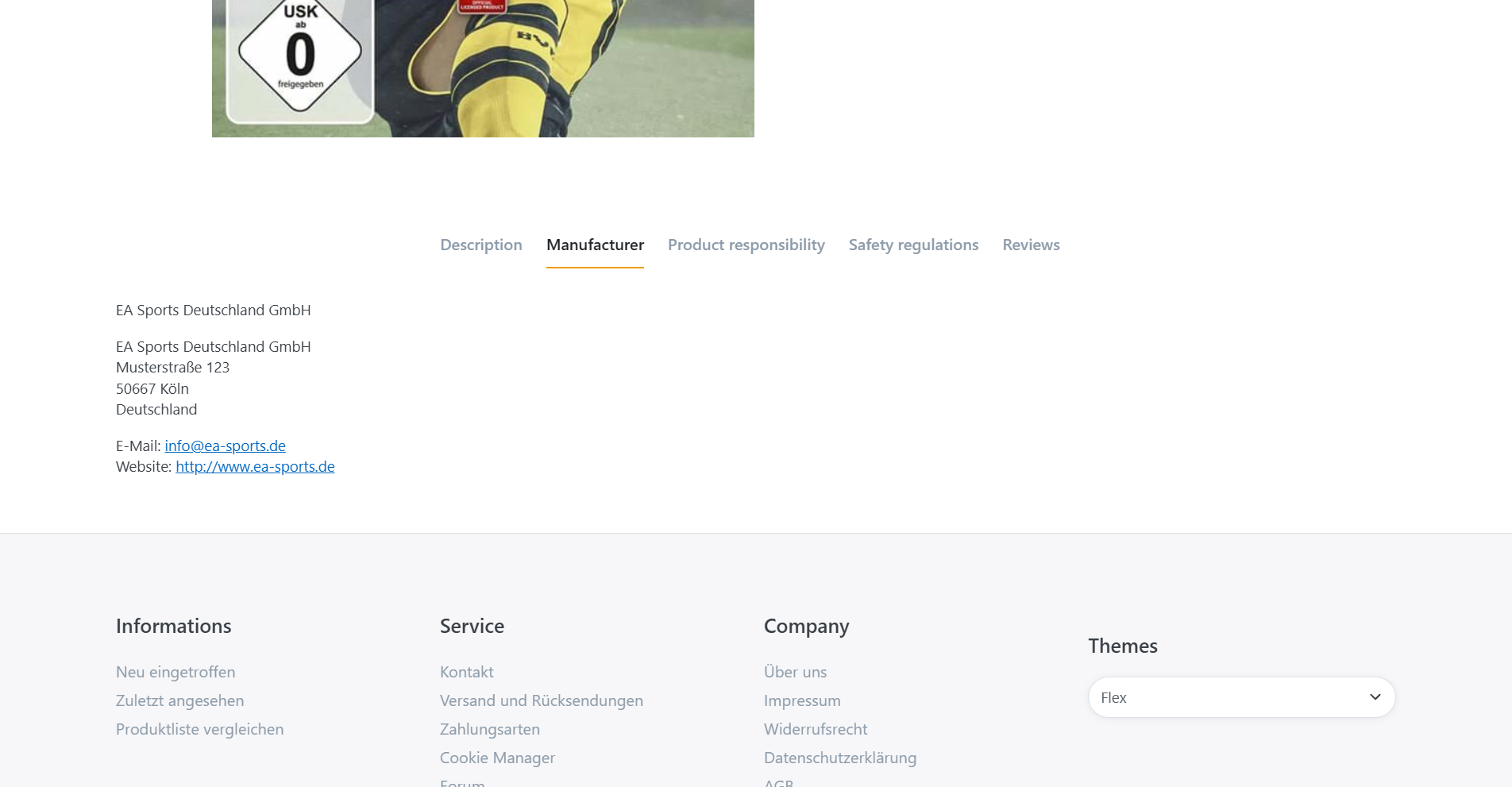
Manufacturer details must be added under Catalog → Manufacturer → GPSR tab to appear on product pages.
Manufacturer Information
| Description | Example |
|---|---|
| Manufacturer / Brand name | EA Sports Germany GmbH |
| Postal address | Musterstraße 123, 50667 Cologne, Germany |
| Electronic address | info@ea-sports.de / ea-sports.de |
Responsible Person (if no EU branch exists)
| Description | Example |
|---|---|
| Name | Dr. Julia Meyer |
| Address | EA Sports Deutschland GmbH, Legal & Compliance Dept., Musterstraße 123, 50667 Cologne |
| Electronic address | julia.meyer@ea-sports.de / ea-sports.de/leitung |
This information will automatically appear for all products linked to that manufacturer.
3. Manage Text blocks
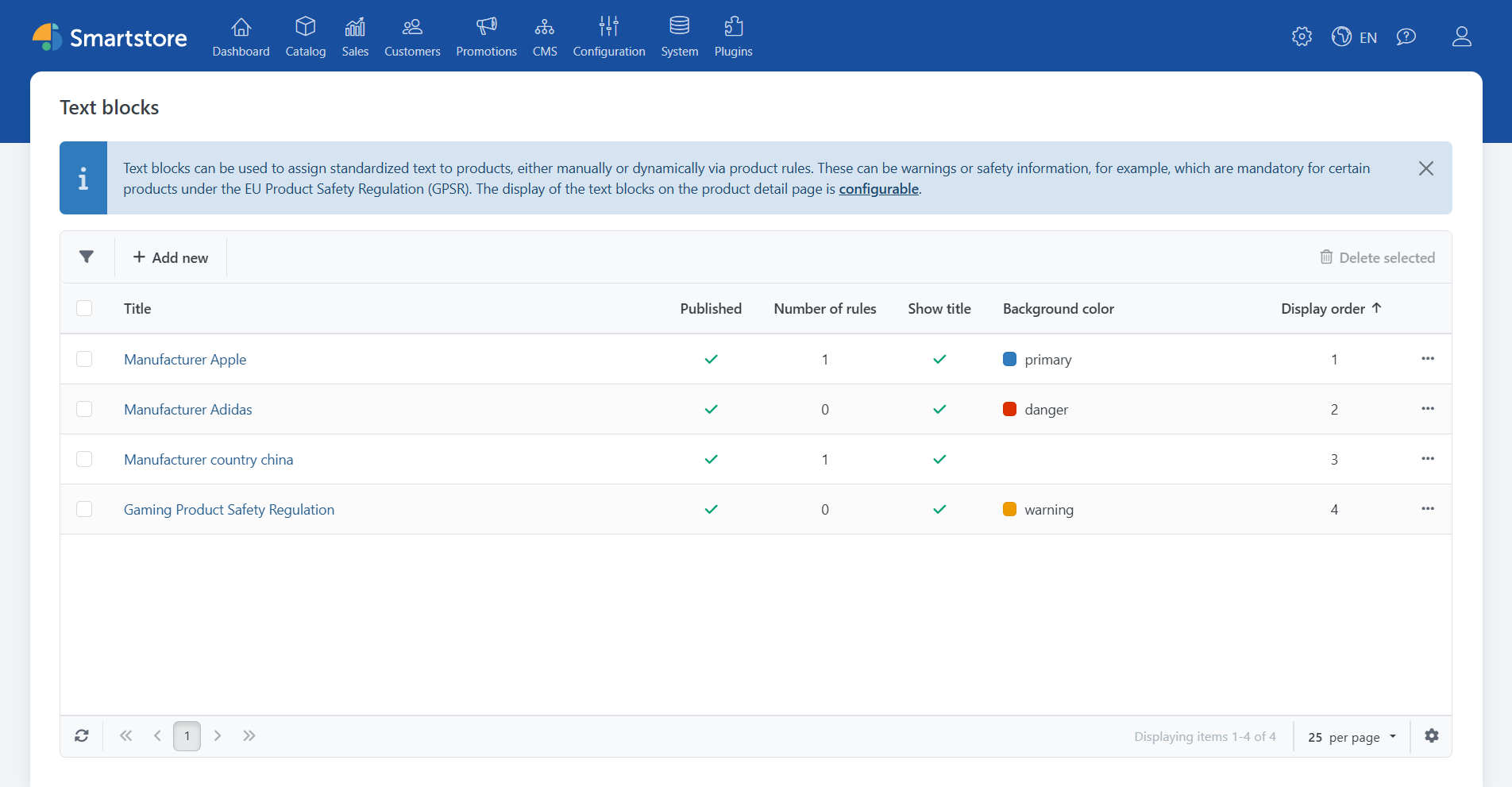
Under CMS → Text Blocks, text blocks can be created manually or automatically assigned based on rules.
Manual Assignment
With manual assignment, a text block is directly assigned to a specific product, category, or CMS element. This method offers full control but can be time-consuming for large product catalogs.
Automatic Assignment by Rule
Alternatively, text blocks can be automatically assigned by rule. Based on certain conditions (e.g., category, product type, manufacturer), the system determines when and where a text block is displayed.
Advantages of automatic rule-based assignment:
- Saves time for large or frequently changing product assortments.
- Reduces maintenance effort and potential errors.
- Ensures consistent content in the right places.
Example of an automatic rule:
A text block with the notice “For orders over €1,000, phone confirmation is
required.” is assigned to all high-priced products.
- Condition: Price > 1000
- Action: Display text block
This way, individual notices for particularly expensive products can be displayed automatically.
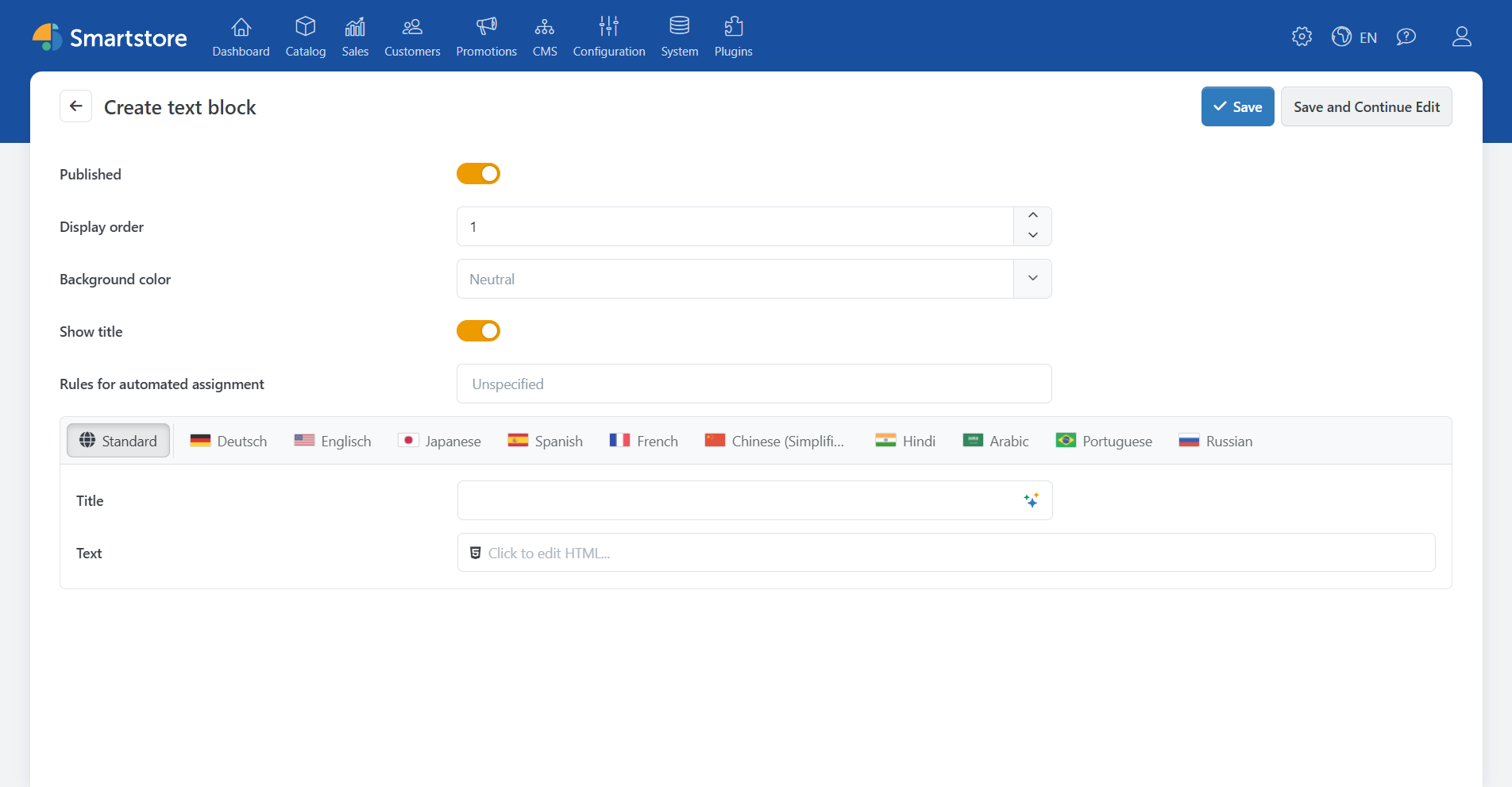
Create a Text block
| Option | Description | Example |
|---|---|---|
| Order | Controls the display order (e.g., 1 = first warning). | 1 |
| Background color | Color of the box. Leave empty for no background. | warning |
| Rules for automatic assignment | Assigns text to products meeting defined criteria. | - |
| Text | Main content of the text block. | Important note: If you notice that your reflexes are better, your concentration is increased and your hand-eye coordination is superhumanly precise – keep going, but remember: the dishes don't do themselves! |
You can also embed images and PDF files into text blocks via HTML links.
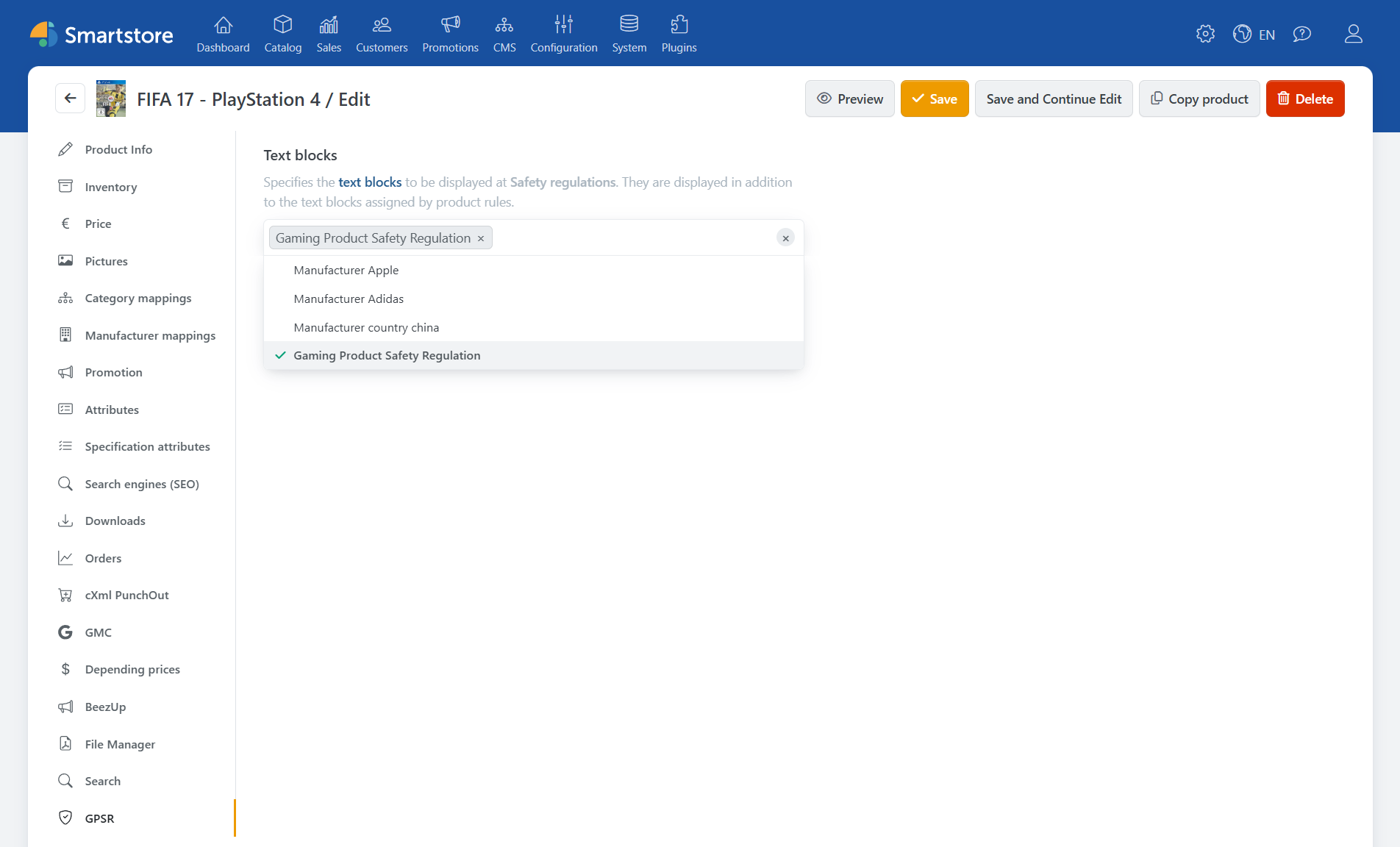
4. Assign Text blocks to Products
- Open the product in the backend.
- Go to the GPSR tab.
- Select the relevant text block from the list.
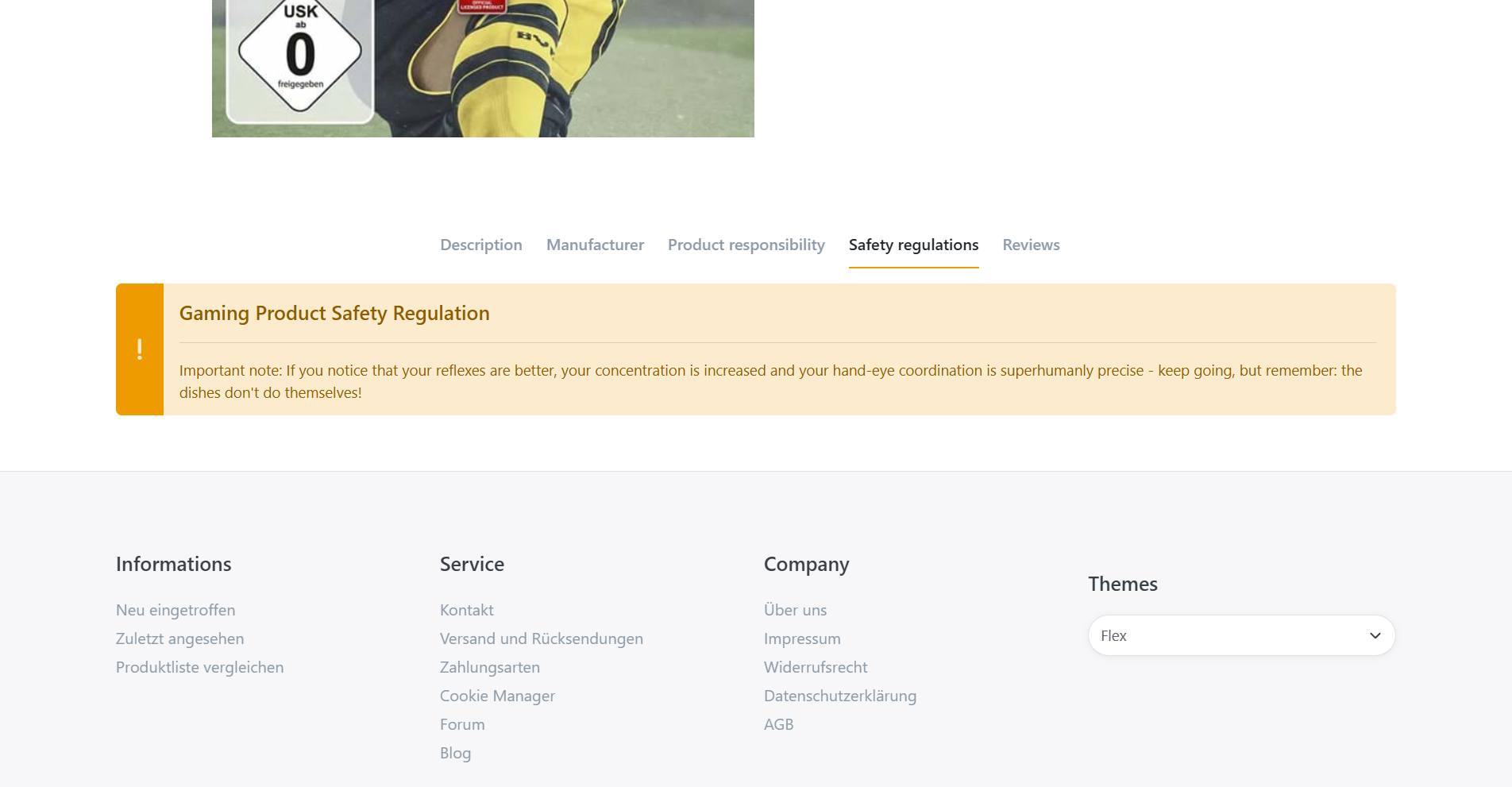
The layout of manufacturer details and text blocks can be customized using the plugin settings.
Note:
All examples in this article are for illustration only and do not constitute legal
advice.
Conclusion
The GPSR Plugin in Smartstore 6 lets you manage mandatory product safety data clearly and effectively. Ensure manufacturer information is complete and warnings are assigned appropriately — for greater transparency and legal compliance in your store.
If you have any further questions about the GPSR plug-in within Smartstore or would like to make an appointment for a live demo, please do not hesitate to contact us. You can reach us via the contact
form, by e-mail at info@smartstore.com or by phone from Monday to Friday between 10
a.m. and 4 p.m. at +49 231 53350.
Contact:
E-mail: info@smartstore.com
Phone: +49 231 53350
SmartStore
AG
Kaiserstrasse 63-65
44135 Dortmund